
How to Convert a Scanned Resume to an Editable Word Document

Mar 30, 2026
|
12 min read
A simple guide to quickly turn scanned resumes into editable Word files using built-in tools and OCR solutions.
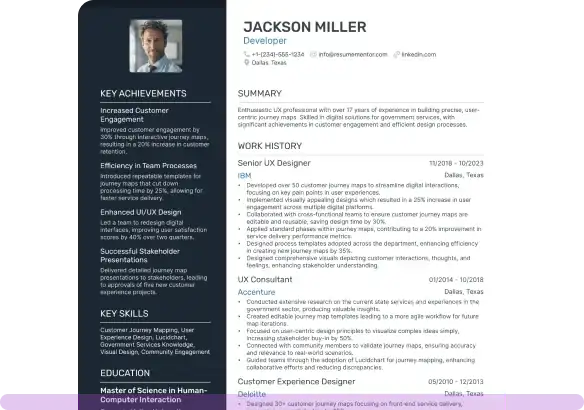
A scanned resume looks clean and professional. It has a fixed layout and format. But the issue with it is that it doesn't allow editing. Even for changing a single word, you need to retype the whole resume in a word processing app like MS Word. The following are the common situations when you need to perform this conversion:
- Make quick changes before applying for a new job
- Some recruiters prefer resumes in Word format
- Poorly scanned files are hard to review
- Tailoring your resume for ATS (Applicant Tracking System)
Retyping everything manually can feel troublesome. However, there are simple ways to convert your scanned resume into a Word file. Let’s learn two of them below.
Methods to Convert a Scanned Resume into Word
The following are two feasible methods to convert a scanned resume into an editable Word file.
Method 1 - Using Microsoft Word
This is a built-in method in Microsoft Word. If your scanned resume is saved as a PDF, Word can often open it. But the result may depend on the quality of the scanned image.
To perform this conversion, you need to follow the steps below:
Step 1 - Open Microsoft Word
Open MS Word on your device. Ensure that you are using version 2016 or above. An older version may not support this feature.
Step 2 - Open Your Resume File
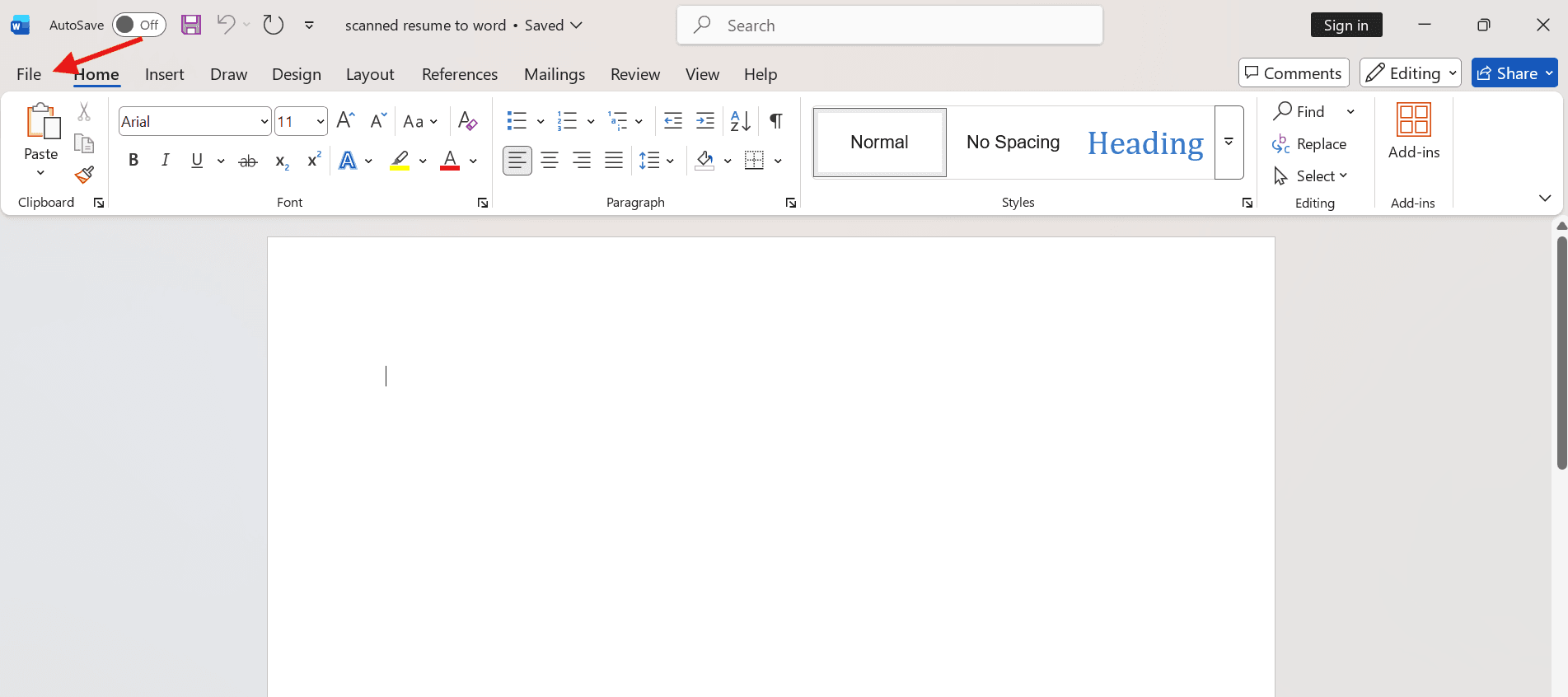
Navigate to the top left corner and click on “File,” then “Open.” Browse your device folders and select your scanned resume.
Step 3 - Allow Word to Convert the File
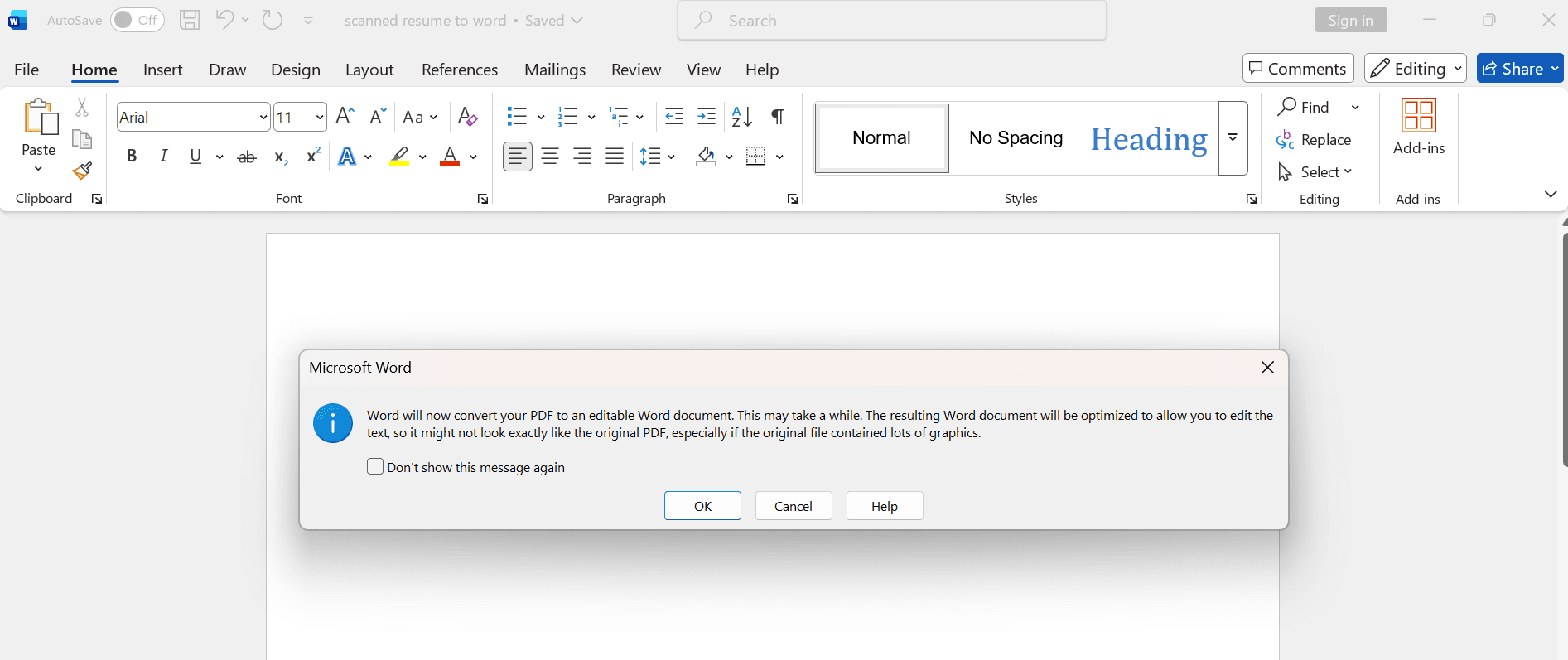
Once you select your scanned resume file, a message will pop up informing you that your converted file might not look exactly the same as the original file, especially if it contains a lot of graphics. In most cases, however, the conversion goes smoothly for text-based content. Click “OK”.
Step 4 - Let the Process Finish
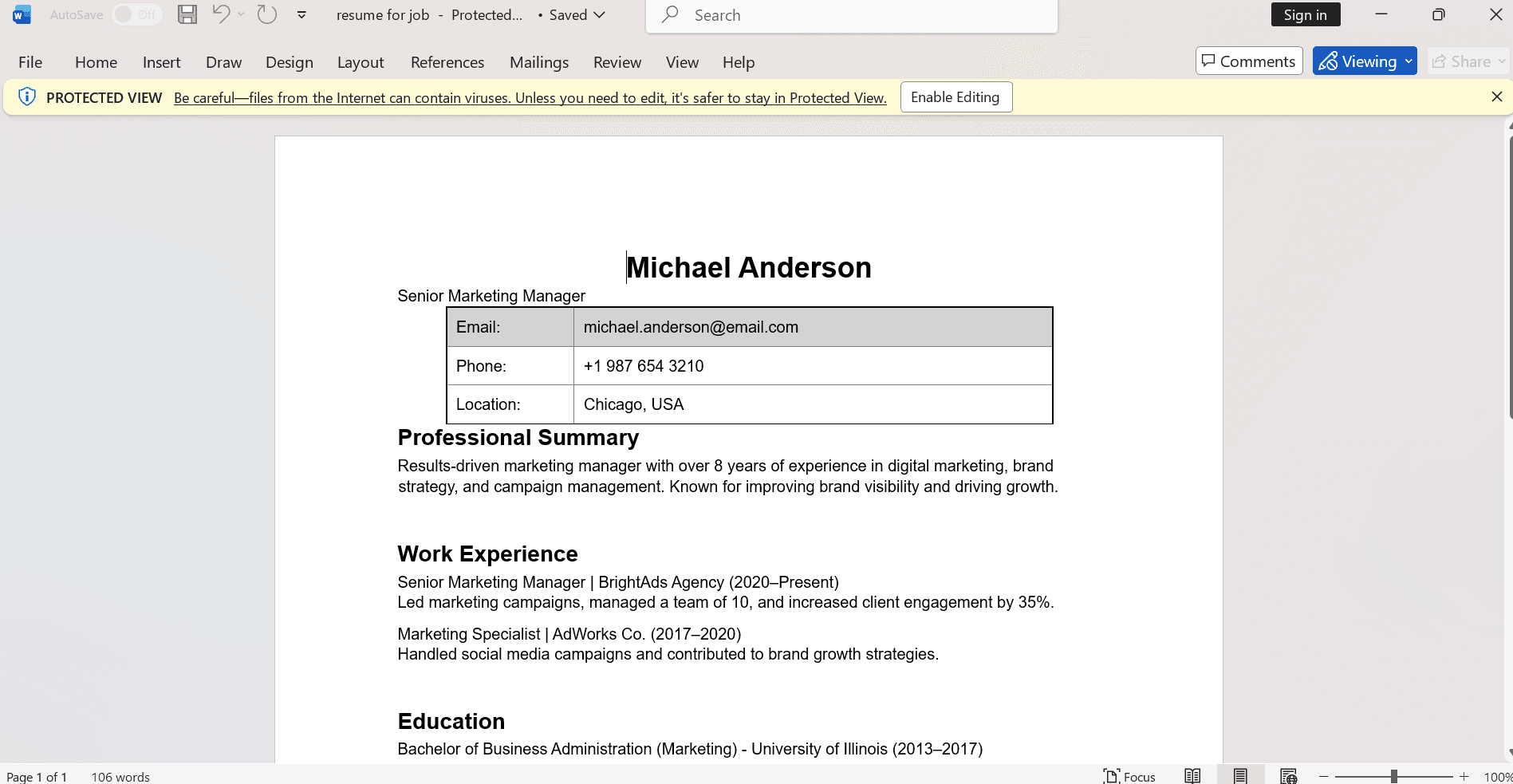
After clicking the OK button, give it a few seconds. MS Word will read the file, extract the text, and give you an editable Word document.
Step 5 - Review the Content
Proofread the document for any issues related to spacing or formatting. You can click on the “Enable Editing” button and edit them.
Step 6 - Save as Word Document
Click on the “Save As” button and select the Word Document from the file type.
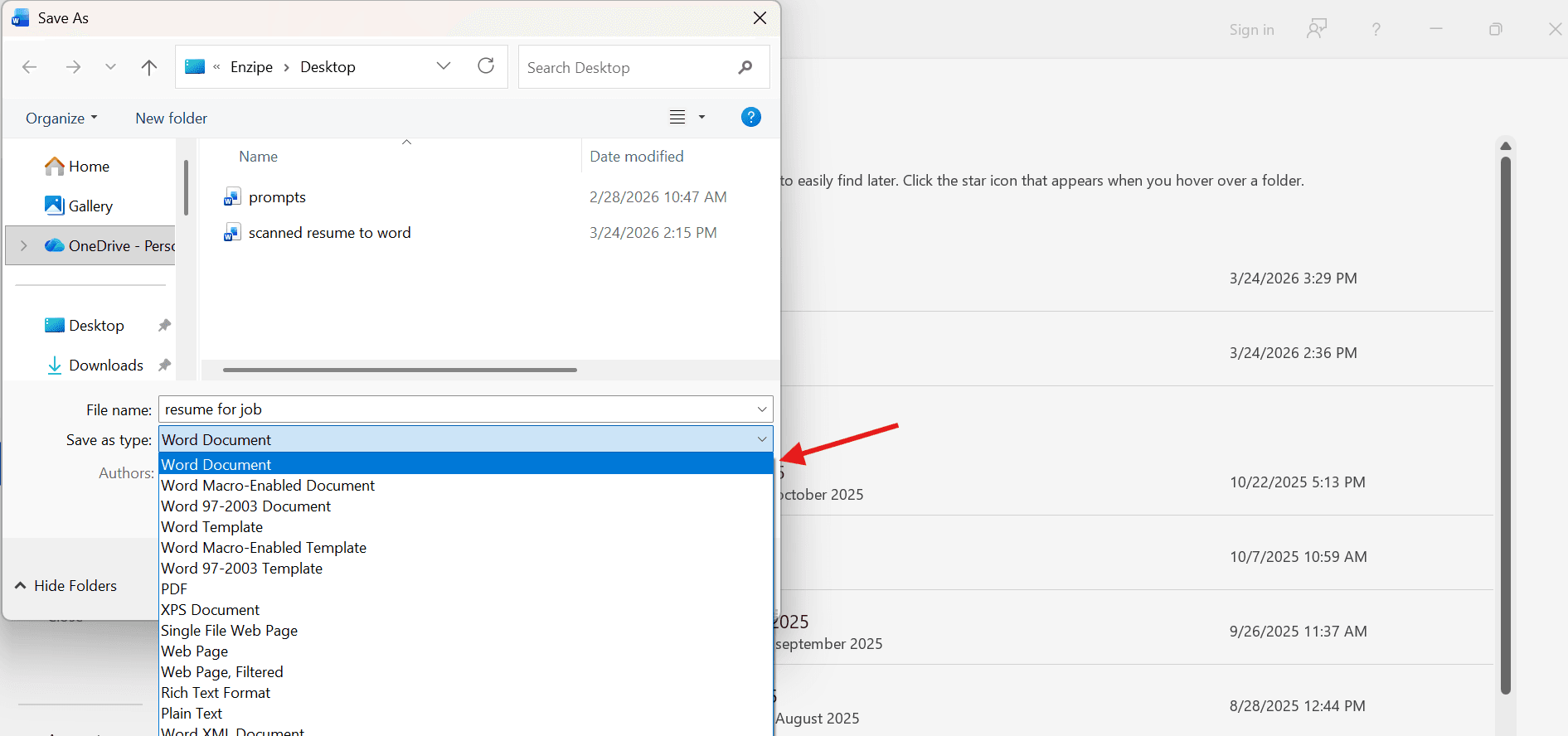
This is how you can convert your scanned resume into a Word document using Microsoft Word's built-in method. This method works well in many cases. However, sometimes it may struggle to perform image-based conversions, especially when the scan quality is poor or if the resume contains complex formatting. In such cases, you can try the following method.
Method 2 - Using an Online Image to Text Converter
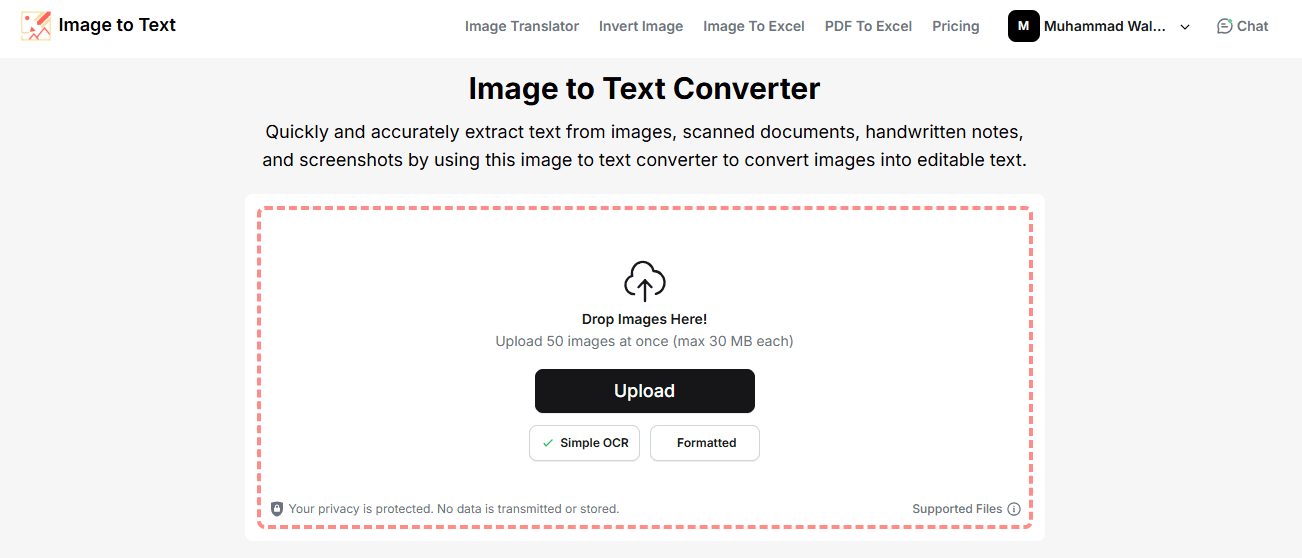
This method is free and quick, and uses an OCR-powered image to text tool to convert scanned resumes into an editable Word file. The tool accepts multiple file types, including PDF, JPEG, PNG, BMP, and more. Let’s discuss how to use such an OCR converter. For demonstration, I’m using one that I found quick and accurate during my testing.
Step 1 - Open the Tool
Find and open an Image to Text Converter tool in your browser. Always choose one that supports the particular format that your scanned resume is saved in, such as PNG, JPEG, or PDF.
Step 2 - Upload Your Resume
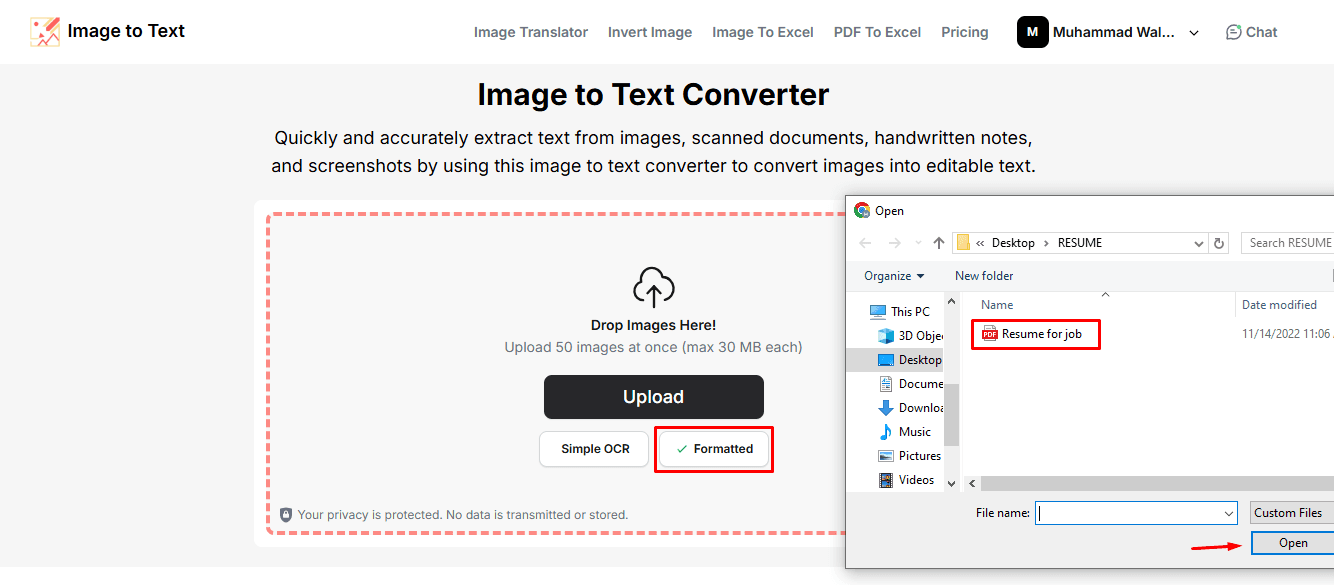
Before uploading your file, select the “Formatted” feature of the tool. This helps keep the formatting intact after file conversion. After this, select your scanned resume file and hit the Upload button.
Step 3 - Start the Conversion
Once you upload the file, click on the “Convert” button.
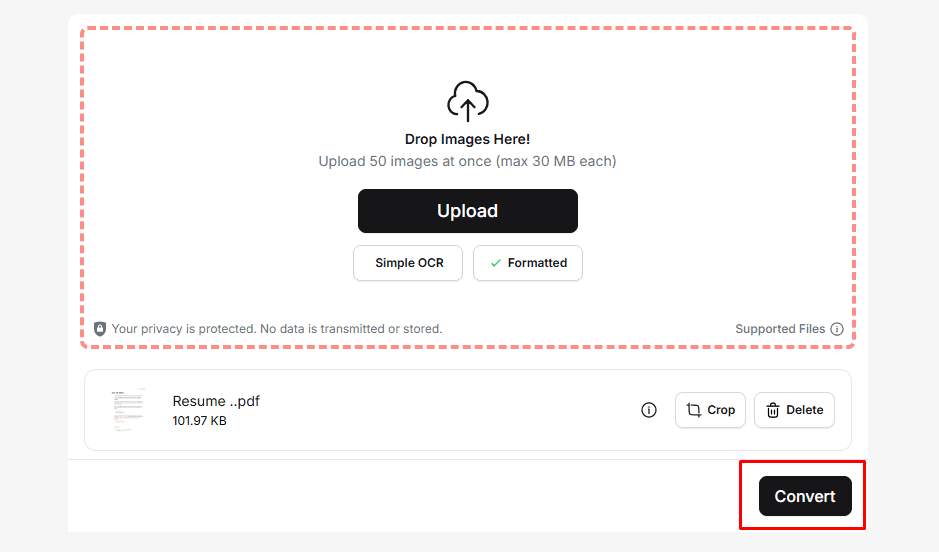
Wait for a few seconds to let the tool convert your file.
Step 4 - Review the Extracted Text
Now that your file has become editable. You can quickly review it to check if all the details are correct and if the formatting is intact. Once you are sure about the details, click on the download button and select the “Word” format.
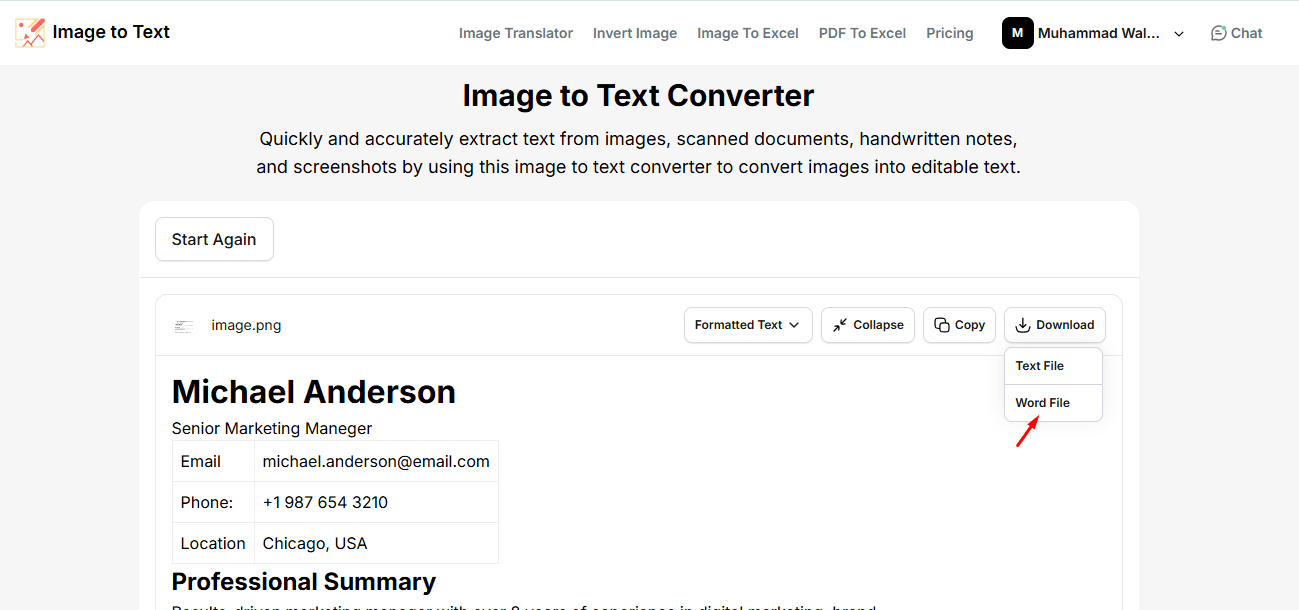
After clicking the Word file, your file will start downloading immediately. This is how you can use an online OCR converter to turn your scanned resume into an editable Word document. It is especially useful when the image is a little blurry or if the formatting is not perfect.
Summing Up
People often keep a scanned copy of their resume on their device. But the issue with it is that it doesn't allow editing. Some people even try to retype everything to make minor changes.
However, this problem can be solved by converting it into a Word file by using simple methods. I have explained two easy ways. One uses Microsoft’s built-in method, while the other uses an Image to text converter. Both work fine depending on the situation or the image quality. So next time, when you need quick updates to your resume, you don't need to start from scratch. Just convert the file, edit a bit, and your updated resume is ready.
Related Articles
Continue Reading
Check more recommended readings to get the job of your dreams.
Resume
Resources
Tools
© 2026. All rights reserved.
Made with love by people who care.