
How to Update an Old Resume When You Only Have a Scanned Copy

Nov 16, 2026
|
12 min read
Lost the original file? Turn your scanned resume into an editable document, refresh it for your next role, and save it in the right format.
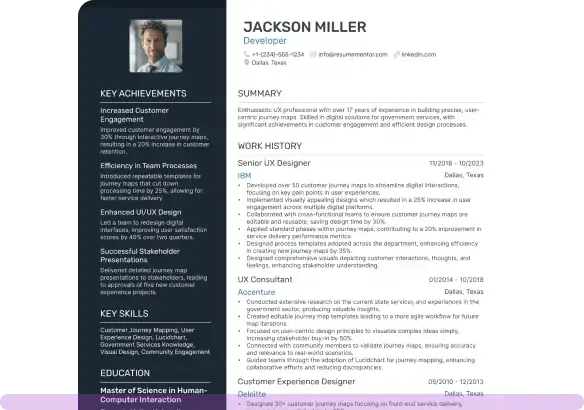
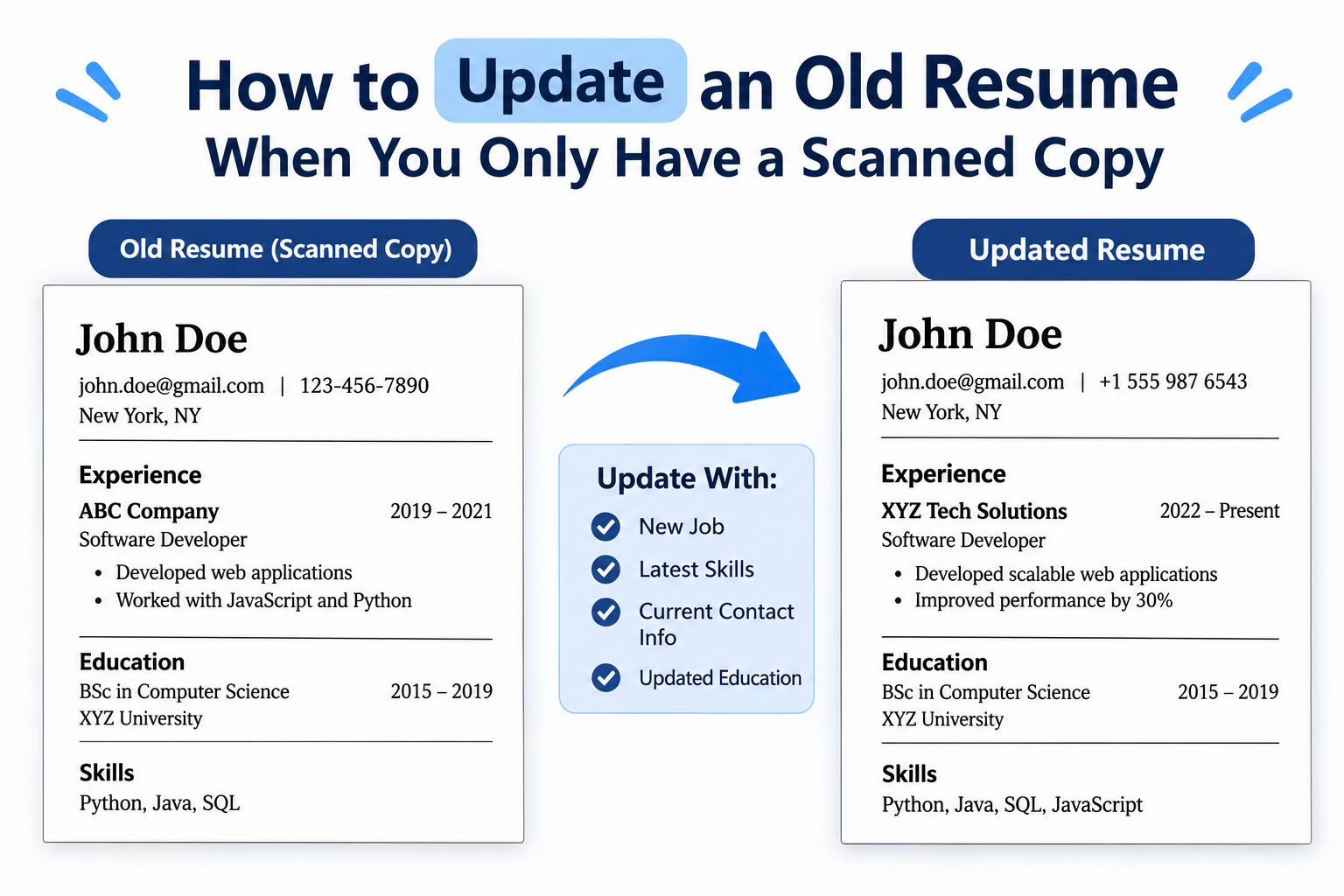
We all know that updating an old resume is essential when applying for a new job with different requirements. This is because it allows you to highlight your updated skills, most recent experiences, and achievements.
However, things become challenging when you don’t have access to the original file of your old resume and are left with a scanned copy. In that case, what should you do? Should you spend time and effort on recreating an updated resume from scratch? Well, not necessarily!
You can still use the scanned copy to update the old resume. In this blog post, we are going to discuss a step-by-step procedure.
Step-by-Step Procedure for Updating an Old Resume Through a Scanned Copy
Below, we have discussed how exactly you can update an old resume when you only have its scanned copy available.
1. Convert the Scanned Copy into an Editable Word Document
The first step for you is to transform the scanned copy of the resume into an editable Word document. So that you can easily update the information without damaging the formatting. The most appropriate way to get this task done is by utilizing an Image to Word converter. This tool works to convert images and scanned documents into Word files.
Now, here is a thing – there are several such converters available on the internet. However, some converters simply insert the original image into a Word document without extracting its text into an editable form.
Since your aim is to edit and update the old resume through a scanned copy, you need to specifically look for a tool that also supports extracting text from the images and presents it in a Word document.
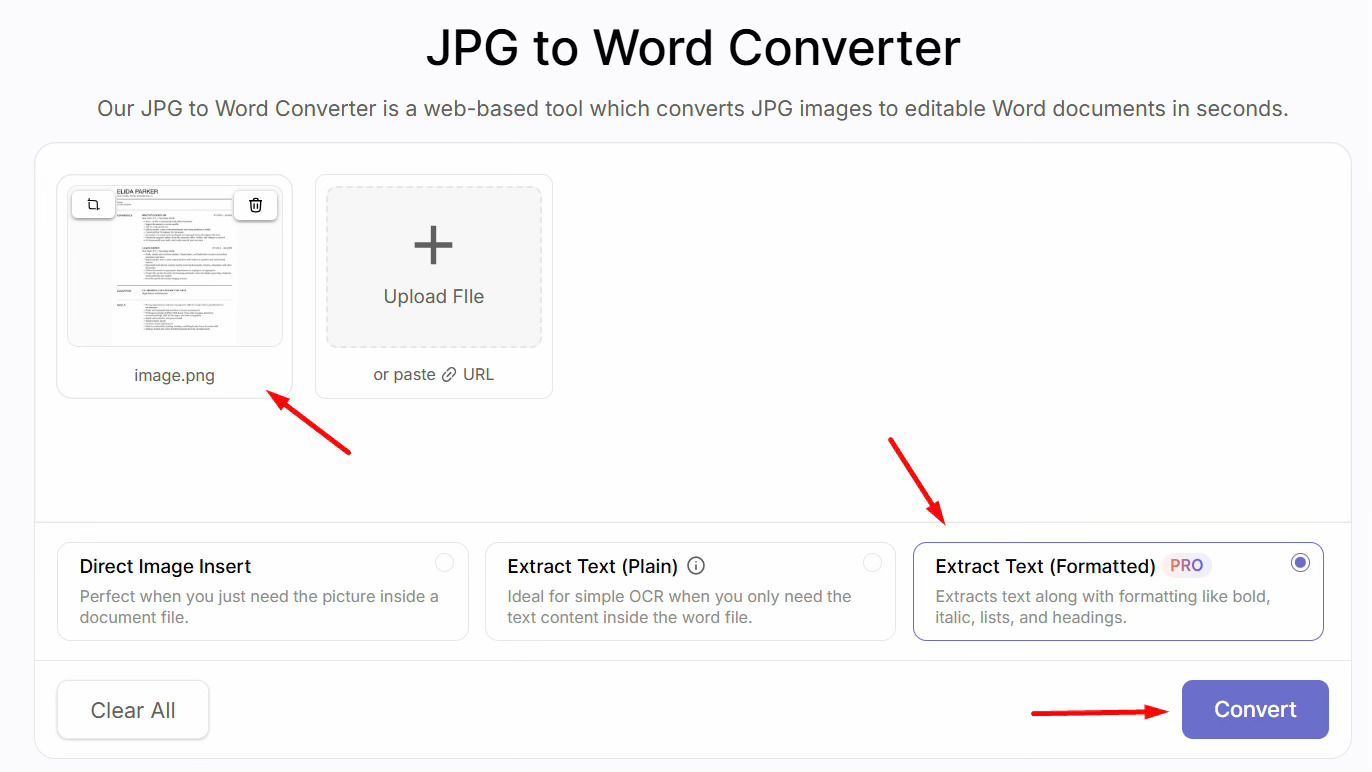
Fortunately, after thorough research and testing of multiple options, we have found Image to Word converter that offers the following conversion options:
- Direct Image Insert: Selecting this option will insert your given photo into a Word document.
- Extract Plain Text: This option will extract all the plain text from the input image and provide results in an editable Word file without taking care of original formatting.
- Extract Formatted Text: Going with this option will allow you to convert and extract text in a Word document by retaining its original formatting.
You must go with the “Extract Formatted Text” option to keep your resume format fully preserved even after extraction and conversion. The usage process is simple. Upload the scanned copy of the resume, select the conversion option, click the button, and download the editable Word file.
2. Update the Information Carefully
Once you have converted the scanned copy of your resume into an editable Word document, it is now time to review and update its information according to your specific needs. First, pay attention to:
- Contact details
- Resume summary
- Work experience
- Educational background
- Skills
If you have gained new work experience, certifications, or endorsements that are more relevant, then consider adding them and removing outdated or less relevant details. It is better to compare your old resume version with the job description you are applying for. Doing so will make it really easier for you to identify and add the most relevant information that the employer is expecting.
While making changes to the editable Word document, make sure you do not damage the resume formatting. Otherwise, the document may become inconsistent or difficult to read.
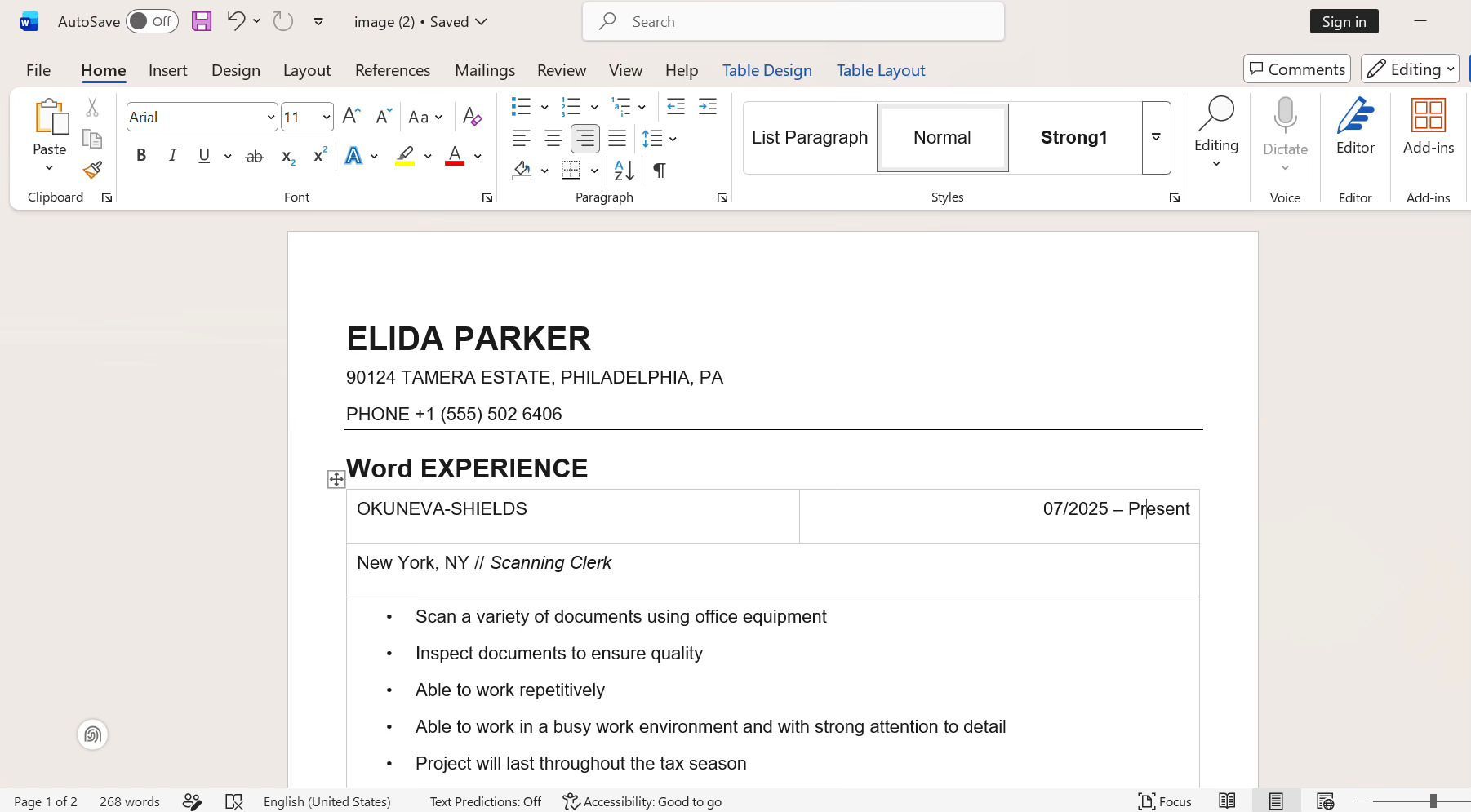
To demonstrate better, we also updated the Word file carefully, and here is how it now looks:
Do not forget to review the entire resume to ensure there are no missing details or errors in it.
3. Save the Updated Version in Your Preferred Format
Now, the final step is to save your updated resume document in the most suitable format. For this, you simply need to click on the “File” button appearing in the ribbon bar of MS Word. Next, click on the “Save As” option, and a box will appear asking you to give the Word document a name, location, and file format.
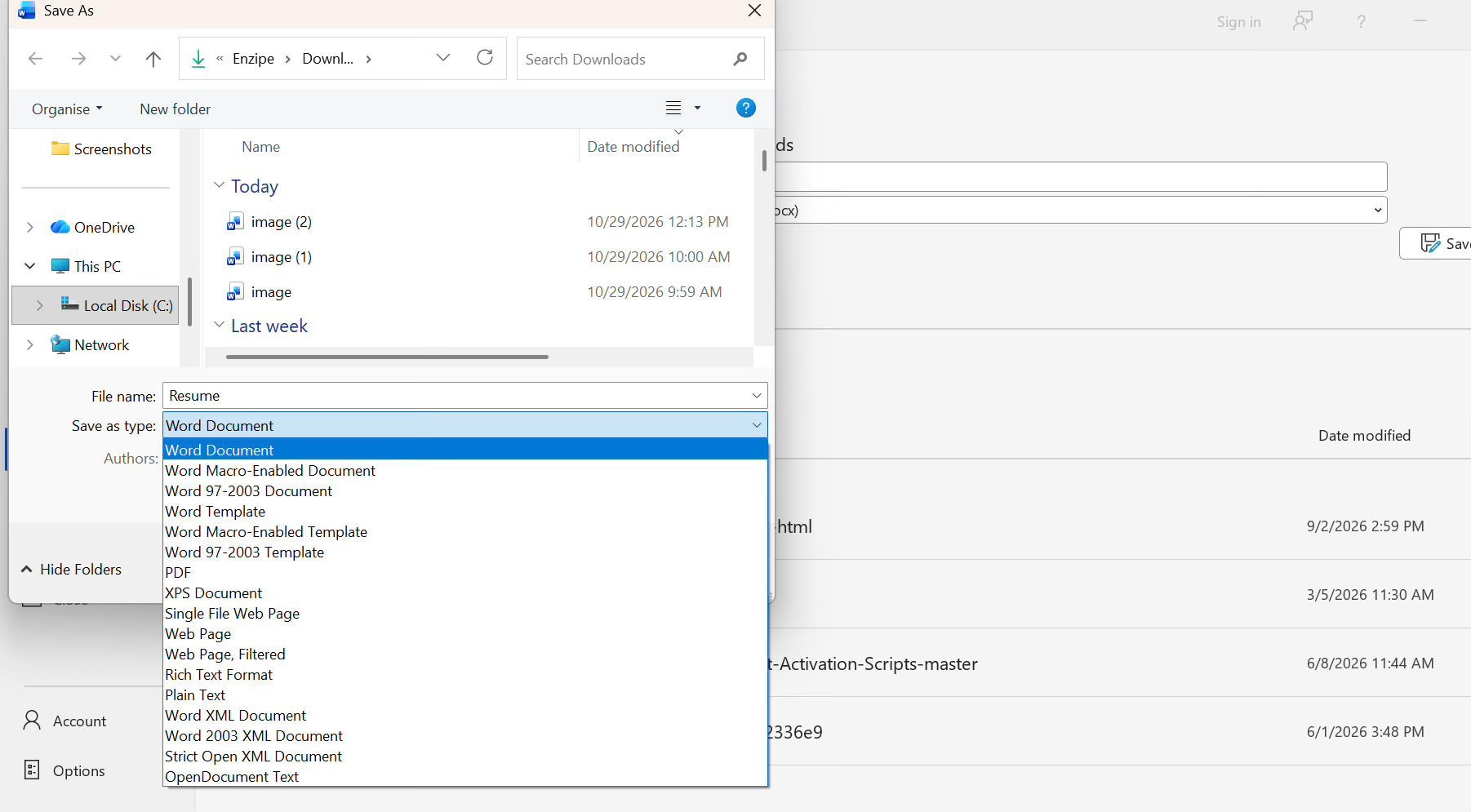
Ideally, you should save the resume file under your own name and choose a PDF format. This is because PDF generally preserves document formatting and is widely supported across devices. It is also suggested to save a copy of your resume in an editable Word document for future use.
So that’s how you can effortlessly update an old resume when you only have access to its scanned copy.
Bottom Line
Tailoring your resume to the job description can improve its relevance to the position and help highlight your most suitable qualifications. But what if you don’t have access to the original version of the resume and only have a scanned copy? Well, in such a situation, there is no need to get frustrated, as you can still use it for updating.
For this, you need to find an Image to Word converter that specifically supports extracting all text from the scanned copy into a fully formatted MS Word document. When done, you can easily update the required information and save the document in a suitable file format (i.e., PDF).
Related Articles
Continue Reading
Check more recommended readings to get the job of your dreams.
Resume
Resources
Tools
© 2026. All rights reserved.
Made with love by people who care.